Product photos
Slow orbits, pours, splashes and reveals that keep the product exact.
Bring a photo to life. Add any image as the first frame, describe what should move, and get a shot that starts exactly where your picture does.
Every clip here started from one of our own images.
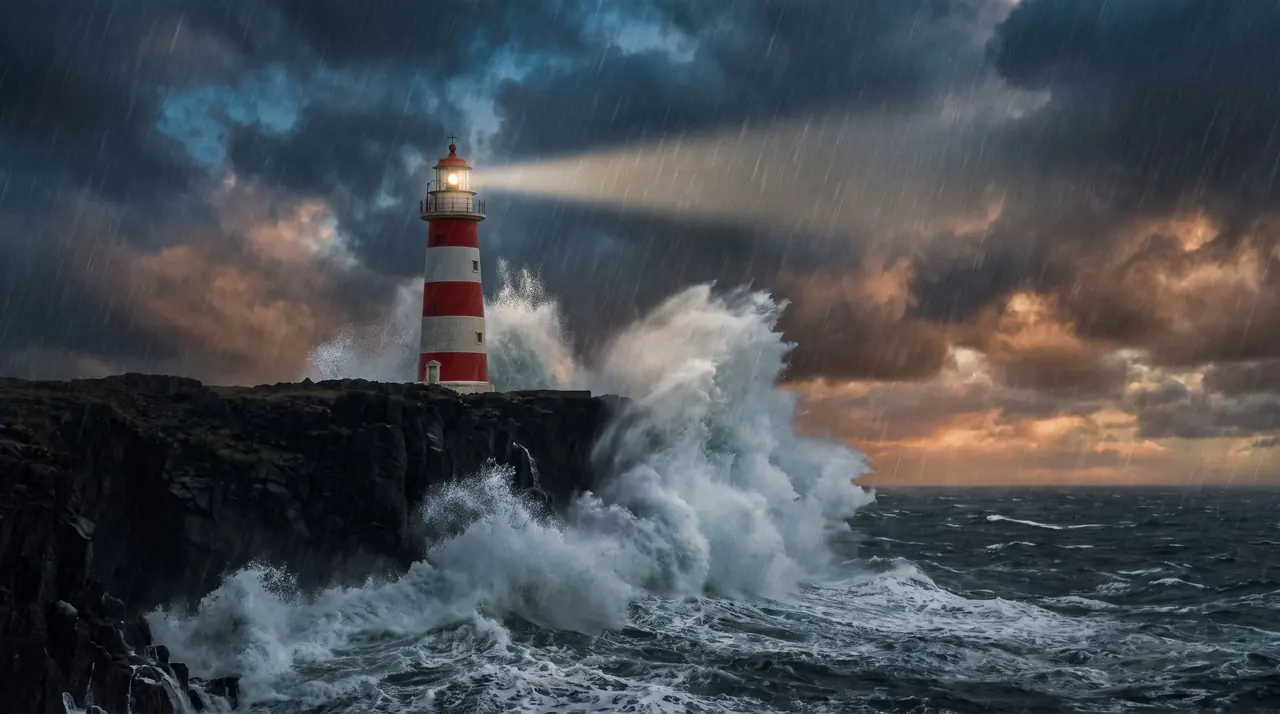 Start frameVideo
Left: a Nano Banana Pro still. Right: the same image as the start frame, animated with Seedance Fast.
Slow orbits, pours, splashes and reveals that keep the product exact.
A turn of the head, a smile, a walk toward the camera.
Moving water, drifting clouds, a camera push into the scene.
Animate a planned frame so the shot matches the board.
An invented creator holding your product, starting to talk.
Give a painting or illustration subtle life for a loop.
Seedance Fast, Seedance 2.5, Kling 3.0, MiniMax H3 and Veo 3.1 all accept one start frame.
Seedance, Kling, Veo, MiniMax, Nano Banana Pro and GPT Image 2 all draw from the same monthly credits as your clips. No stack of subscriptions.
Every generation shows its credit cost for the model, length and quality you picked before you confirm it.
Generate the perfect still with Nano Banana Pro, then animate it without leaving the app.
Tap one to drop it into the generator above, then make it yours.
Use “+ Add reference” to set the start frame (Kling 3.0 takes JPEG or PNG up to 10 MB).
The image already says what is there. Say what moves and how the camera moves.
The video starts on your exact frame.
Text-to-video asks the model to invent everything at once: the subject, the setting, the light and the motion. Image-to-video splits that job. The image fixes how the shot looks; the prompt only has to say how it moves. That is why it is the go-to method for products, recurring characters and any shot that has to match a brand or a storyboard.
The most common mistake is re-describing the image. The model can already see it. Spend the words on change: what the subject does (“turns toward the camera and smiles”), what the environment does (“waves explode against the cliff”) and what the camera does (“slow push-in”, “orbit left”). One or two motions per five seconds is plenty.
Every video model in ClipSpeed takes one start frame. Seedance Fast is the quick, inexpensive choice and handled every clip on this page. Seedance 2.5 can run a single take up to 30 seconds. Kling 3.0 is strong on physical motion and can add sound; it accepts JPEG or PNG start frames up to 10 MB. Veo 3.1 adds photoreal light and optional audio. MiniMax H3 is good with people.
The video inherits the image’s aspect ratio and composition, so frame for the motion you want: leave room in the direction a subject will move, keep the subject sharp, avoid text you need to stay perfectly legible during big camera moves. If you do not have the right picture, generate it first with the AI image generator — the lighthouse and storyboard frames above were made that way — and if you are planning a whole sequence, sketch it with the AI storyboard generator.
A last tip: generate two or three variations of the same start frame with different motion prompts. The image keeps them consistent, so you can cut between them as if they were takes from one shoot.
In the video generator, use “+ Add reference” to add your image as the start frame, describe the motion, pick a model and generate.
All five: Seedance Fast, Seedance 2.5, Kling 3.0, MiniMax H3 and Veo 3.1. Each takes one start frame.
Not yet. Today each video model takes a single start frame.
Common image formats work as start frames; Kling 3.0 specifically needs a JPEG or PNG up to 10 MB.
The first frame is your image exactly. Gentle motion keeps it closest to the original; big camera moves give the model more to invent.
Everything runs on one monthly credits wallet that you also use for clipping: Starter is $19 for 300 credits, Pro $39 for 600 and Ultra $59 for 1,000. A 5-second Seedance Fast clip at 720p is about 5 credits. The generator shows the credits before you confirm, and credits reset each billing cycle. See pricing for the full table.
New accounts can start with a $1 3-day trial: 30 minutes of clipping on any plan, watermark-free, plus your own AI Influencer. AI Video, AI Images, Morphaze and AI Ads unlock when your plan starts — or skip the trial in the app to unlock them now.
You do. Our Terms say you keep full ownership of anything you upload or generate, and you are responsible for how you use it — including having the rights to any photo or clip you upload. Platforms increasingly ask you to label realistic AI video; our disclosure guide covers YouTube, TikTok and Meta.
 AI Video Generator
 AI Image Generator
 AI Influencer Generator
 Morphaze AI Character Swap
 AI Motion Transfer
 AI Dance Video Generator
 AI Ad Generator
 AI UGC Video Generator
 AI Product Photo Generator
 Image to Video
 Text to Video
 AI Spokesperson Video
 Faceless Video Generator
 AI Storyboard Generator
Plans from $19 a month for 300 credits, shared across every AI model and your clips. Pro is $39 for 600, Ultra $59 for 1,000. Cancel anytime.
 Seedance 2.5
 Nano Banana Pro
 Kling 3.0
 Veo 3.1
 AI Clip Maker