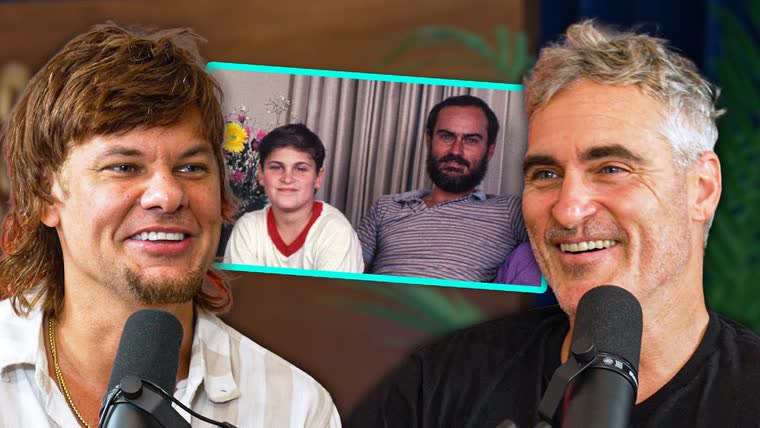
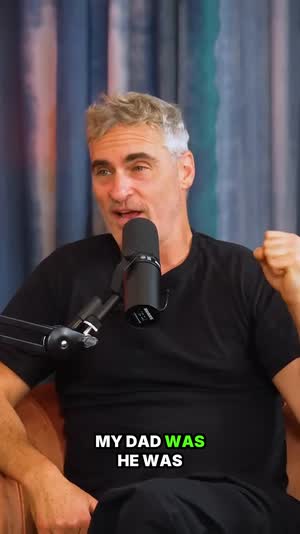
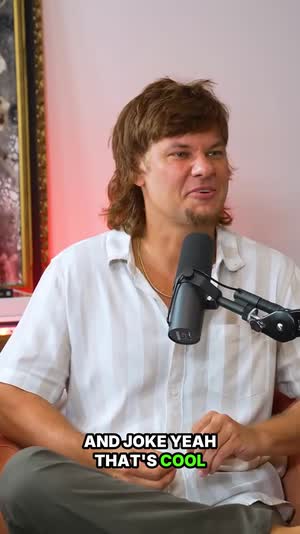
Cut your reactions into clips that still make sense
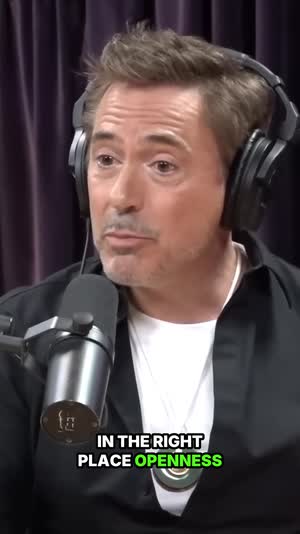
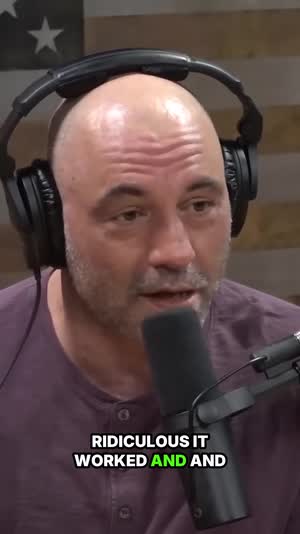
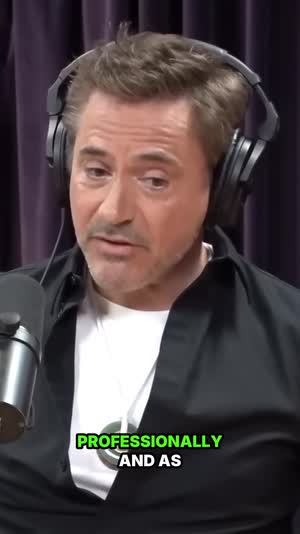
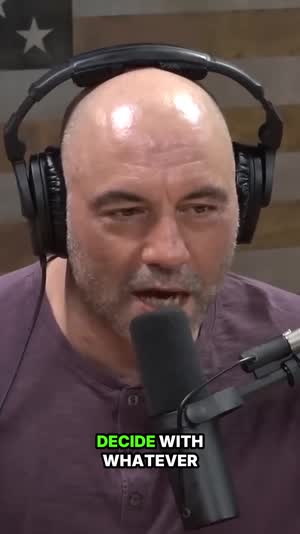
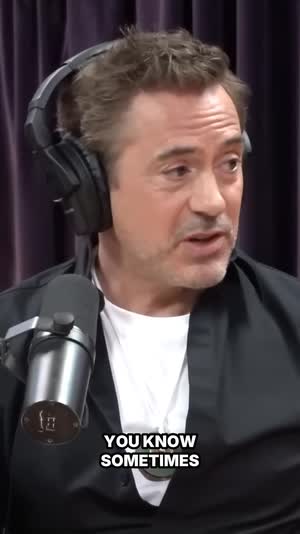
A reaction is only funny if the viewer sees the thing you reacted to. Paste your upload and the AI hunts for the turns — the beat in the source, the pause, then your face — and returns vertical clips with your cam boxed over the footage, captions timed to your words, and a 0-100 grade on each.
🎬 Enter any URL under 2 hours
⏱ That video is longer than we can process
Picture-in-picture cam over the source
Cuts start before the setup
Captions timed word by word
Every beat graded 0-100
Clips a live watch-along as it runs
One long video in, a week of posts out
Paste a link. Get the best moments.
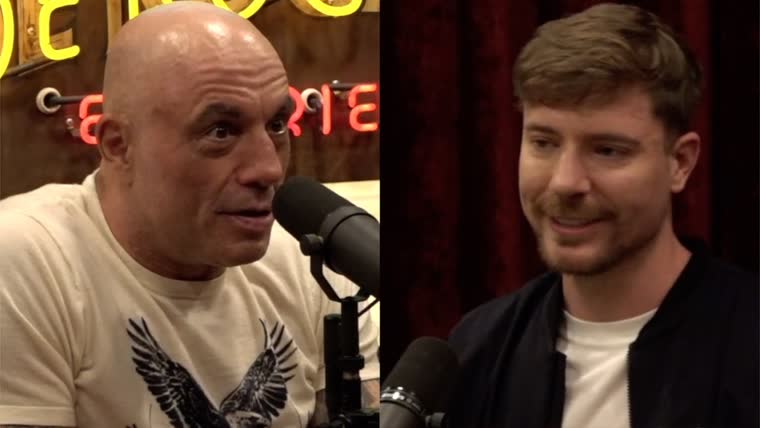
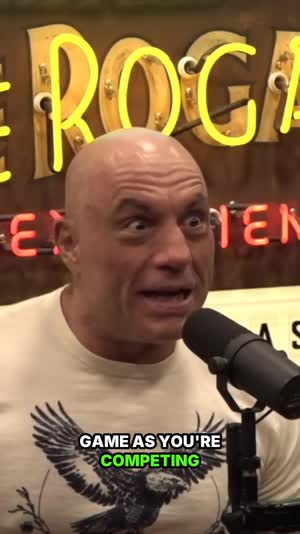
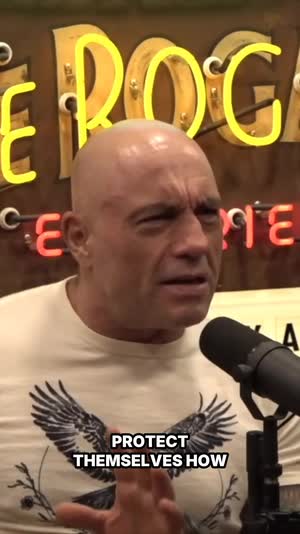
Real ClipSpeedAI output — every clip below was scored, cut, reframed to 9:16 and captioned automatically from the video above it.
Paste the YouTube link to your full reaction upload, or send the file straight from your drive. It wants the composited recording — the one where your cam already sits over the source, or the screen capture of the watch-along. Every plan takes source video up to two hours per upload, which covers a full-episode reaction; the shortest file it will accept is two minutes.
2
The model looks for the turn
A reaction beat has a shape to it. Something happens, there is a half-beat of nothing, then your face moves and you say the line. Rather than slicing the runtime into even chunks, the AI reads the transcript and the audio for those turns, so what lands in your queue is the moment you actually stood up, not minute forty-one.
3
Sanity-check the framing and post
Clips come back vertical, captioned and scored. If one beat plays better side by side than boxed, switch its layout. If you want a second more runway before the hit, drag the in-point earlier and re-render. Then download the winners or drop them into the scheduler for TikTok, Reels and Shorts.
Built for footage with two things on screen
Reaction content breaks in ways a solo talking head never does. Each of these is aimed at one of those breaks.
🖼
Picture-in-picture that keeps both subjects
Two subjects, one 9:16 frame, and neither can be thrown away. The PIP layout runs the source full-bleed with your cam in a corner box, so a phone viewer reads the thing and your face. Centre-cropping a 16:9 reaction usually amputates the cam entirely, which is how you end up with a clip of a stranger watching nothing.
⏱
The setup rides along with the payoff
The classic way an automated reaction clip dies is opening on you howling at something the viewer never saw. Clips here are anchored on the source beat and extended through your response, so cause and effect stay in the same forty seconds.
📊
A 0-100 grade on every beat
Reaction channels run on cadence, so the real question is which of nineteen moments earns Tuesday. Each clip is graded on how it opens, how it paces and where its peak sits, which turns a folder of exports into a ranked posting order.
🔤
Captions that track your commentary
Reaction audio is a mess by nature — you talk over the source, you trail off, you say the same word four times. Word-by-word captions burned into the frame keep a muted scroller on your line, and because they highlight in sync, the punch word lands on the same frame as the face.
✂️
Quiet watching time stripped out
The genre is full of stretches where you are simply watching. Silence and filler words are removed automatically, which routinely takes a flabby ninety-second beat down near fifty. Tightening is not cosmetic here; it is the whole reason a beat survives a swipe.
📐
No clip opens mid-word
Cuts land on sentence boundaries, so a clip begins on the start of a thought and ends on the end of one. Half a spoken line reads as a corrupted upload rather than a stylish edit, and viewers bail inside a second when it happens.
🔴
Live watch-alongs clipped during the stream
Plenty of reactions happen live rather than in a recorded upload. Connect a YouTube, Twitch or Kick channel and clips are produced mid-broadcast, so the moment chat is still quoting is already sitting in your library, not waiting on a VOD export.
🎛
Seven layouts, changeable per clip
PIP is the sensible default, a two-host watch-along often reads better split, and reacting to a document or a stat sheet wants the screenshare layout. Layout is a per-clip choice, so one odd beat does not force you to re-run the batch.
🤖
Run it from Claude or from your own code
The engine is exposed as an MCP connector, so you can give Claude a link and get finished reaction clips back inside the conversation. If you would rather script a whole channel backlog, the same engine has a developer API — both are covered in the API docs.
Channels that live on this format
🎬 First-watch film and TV
An episode reaction runs an hour and holds maybe eight moments anyone will search for. Locating those eight is the labour; the watching was the fun.
🎵 Music reactors
The drop, the key change, the bar that made you pull the headphones off. These are exact timestamps, and a clip that arrives two seconds late has nothing in it.
🎮 Trailer and patch-note reactors
A webcam over game footage is precisely the shape PIP was designed around. If your source is a long stream instead, the VOD clipper covers that workflow.
🗣 Commentary and drama channels
You are usually reacting to a clip inside your own longer video essay. The AI pulls the stretch where your take sharpens rather than the setup you read off screen.
📺 Watch-along streamers
Reacting live means the clip window closes fast. Real-time clipping means a beat is postable while the stream is still going.
🏟 Analysts breaking down footage
Coaches and pundits reacting to plays need the play and the read in one clip. The sports highlight generator goes deeper on game film.
Reaction clips are won and lost in about two seconds
Take any reaction clip that worked and shave two seconds off the front. It stops working. The viewer arrives on a face already mid-laugh with no idea what caused it, reads the clip as noise, and swipes. Add four seconds instead and you get the opposite failure: a long shot of somebody quietly watching, which is the most swipe-inducing footage on the internet.
That narrow window is why the moment-finding here anchors on the source event rather than on your voice. A detector that only listens for loud commentary will happily start the clip on the reaction and leave the cause on the cutting-room floor. Starting the cut a beat before the thing happens costs nothing and it is the difference between a clip that reads and a clip that confuses.
It is also why sentence-boundary cutting matters more in this genre than in a lecture or an interview. Reaction speech is fragmentary and overlapping, so an arbitrary cut has a high chance of landing inside a word. Ending on the completed thought gives the clip a button, and a clip with a button is a clip people watch twice.
The framing problem you cannot fix by cropping
Every reaction recording is two pictures fighting over one rectangle. On a 16:9 upload that is fine — there is width to spare. Squeeze the same frame into vertical and roughly half the horizontal information disappears, and the naive centre crop throws away whichever side your cam happens to sit on.
Picture-in-picture solves it by refusing to choose. The source fills the vertical frame, your cam sits in a box over it, and both survive at a size a phone can read. That is a layout decision, not a filter, which is why it is applied per clip from what is actually visible in the footage rather than as a global setting you have to remember to switch on.
Face tracking then handles the smaller version of the same problem inside the cam box. If you lean, stand up or shove your chair back — and reaction cams do all three — a fixed crop of the box loses your head. Following the face keeps you in frame through the exact seconds the clip exists for.
Five mistakes that quietly kill a reaction clip
The first is starting on your face. It feels natural because your face is the channel, but a stranger scrolling past has no reason to care about a person laughing at nothing. Lead with the source moment and let your response arrive second.
The second is leaving the whole build-up in. Reactors overcorrect after learning the first lesson and hand over twenty seconds of context before anything happens. The rule of thumb that works is a couple of beats of setup, no more, because the feed will not wait for your framing.
The third is letting the source audio sit at full volume under your commentary. It muddies the transcript, it crowds the captions, and on some platforms it invites problems you do not need. Duck it while you record and every downstream step gets easier.
The fourth is posting everything. A batch of nineteen clips is not nineteen posts, it is four posts and fifteen things you learned about your own episode. Using the score to cut the list is not laziness, it is the only way the format stays sustainable past week three.
The fifth is inconsistent framing. If your cam sits bottom-right in one clip and top-left in the next, a returning viewer has to re-learn where to look every time. Pick a layout, keep it, and let the content be the thing that varies.
A weekly routine for a reaction channel
Treat the long upload as the raw material and the clips as the distribution, and put them on different schedules. Record and publish the full reaction when you normally would. Then run it through clipping the same day, while your memory of which bits worked is still sharp enough to sanity-check the shortlist in five minutes.
Schedule the approved clips across the following week rather than firing them all at once. Short feeds reward presence over bursts, and a clip that goes out on Thursday can still drive people back to a video you published on Sunday. The scheduler exists so that spacing costs you nothing extra.
Keep a habit of watching your own top clip from the previous week before you approve this week. It is the cheapest feedback loop available and it will teach you more about your own timing than any general advice, including this page.
What this will not do for a reaction channel
It will not composite two separate recordings for you. If your cam and the source were captured as independent files, they need to be laid over each other and exported as one video before anything here can help. OBS, your streaming software, or any editor will do that once; after that the finished file is what you paste in.
It will not invent footage. There is no AI video generation, no synthetic B-roll and no voice cloning in this product, and if a competitor page promises those for reaction content you should assume you are being sold a different tool. Everything produced here is cut from frames you recorded.
It is weakest on reactions where almost nothing is said. A silent listen-through with occasional eyebrow raises gives the model very little to read, because detection leans on speech and on how it is delivered. If that describes your channel, put one video through the $1 trial before you commit to a month — one video will tell you more than any claim on this page.
When automated clipping is not the right call for a reaction
Some reactions are already the clip. Say you record an eight-minute response to a trailer and the whole thing is one continuous take with no dead spots — there is nothing to hunt for, and asking a moment finder which forty seconds to keep is a slower route to a decision you could make from memory. Under about ten minutes of runtime, watch it back once and mark two in-points yourself. No pipeline beats that.
Reactions built around text on screen are the other poor fit. If the video is you reading a thread, a patch note or a comment section aloud, the interesting object is the text, and vertical framing shrinks it under the size a phone can resolve. The screenshare layout helps and it will not rescue a fourteen-point font. Screenshot the text, enlarge it deliberately, and treat that as a different kind of post rather than as a clip that came back wrong.
And if you barely speak during a reaction, this is the wrong shape of tool rather than a weak version of the right one. Moment finding reads the transcript and the delivery, and a silent watch supplies neither. The trap is concluding that the tool failed on your particular footage, when the genre you make simply has no speech in it to read. One quiet video through the $1 trial settles that in five minutes and costs a single dollar.
Settings and export choices that change the finished clip
Three choices do most of the work, and layout is the first. Fill and fit suit footage with one subject; picture-in-picture and split suit footage with two; screenshare is for anything where the readable thing is a screen rather than a person. Layout is a per-clip decision, so when one beat in a batch reads better side by side you change that beat and re-render it alone instead of re-running everything.
Caption style is the second, and there are eleven to choose between. That choice is not cosmetic, because styles differ in how much vertical space they occupy, and on a picture-in-picture clip that space is competing with your cam box for the same corner. If words are landing across your own face, switching style is usually a faster fix than changing the layout. Captions are burned into the frame rather than shipped as a separate file, so a clip re-uploaded from your phone to a second platform arrives with its words still attached and still in sync.
The third is the in-point, and it is the one worth touching most often. Cuts land on sentence boundaries, which is right for your commentary and occasionally a beat late for the source event that provoked it. Dragging the start back a second or two and re-rendering costs one render, and in this genre it is the single edit most likely to move a middling clip into the postable pile.
On export, 9:16 is the default and the one to keep unless you have a reason not to; 1:1 exists for feed placements and 16:9 for a landscape compilation cut. Every clip renders clean, on the $1 trial exactly as on a monthly plan — worth knowing before you build a week of scheduled posts, because nothing you export here has to be made again for the sake of a mark.
Automatic clipping versus doing it by hand in your editor
Hand editing wins whenever the joke depends on the edit. A punch-in on a single frame, a freeze on your face, a sound effect stabbed in on the beat — those are constructions, and no automatic pass builds them. If your channel's identity is the edit rather than the reaction itself, the honest answer is that you are an editor and you should carry on editing.
The automatic pass wins the search, which is the part nobody enjoys. Most creators overestimate how much of clipping is craft and underestimate how much is scrubbing: on a two-hour first-watch, locating the eleven moments is the bulk of the afternoon and cutting any single one of them is a couple of minutes. Handing over the search while keeping the craft is a better division than handing over everything or nothing.
In practice the channels that keep this up land on a hybrid. Run the batch, post the mid-tier clips exactly as they came out, and hand-finish the one or two you think can travel. The finished one gets the punch-in and the sound effect; the other six get posted, which beats the zero that get posted in a week where you sat down to edit properly and ran out of evening.
Alternatives, and the case for each of them
Your streaming platform already clips. Twitch and Kick both put a clip button in front of every viewer, and during a live watch-along that button in a moderator's hands is free and instant. What it returns is a landscape capture of fixed length with no captions and no vertical rebuild, so it is a bookmarking tool rather than a publishing one. A reasonable workflow is to let chat mark the moments with it and run the marked stretch through something that finishes clips.
A general editor is the other end of the range. CapCut is where most reactors already have an account, and its automatic captions cover half of what this page describes for nothing at all. What stays on your plate is the finding, the vertical rebuild and the layout, every clip, forever. That trade is comfortable at two clips a week and stops being comfortable at ten.
Paying an editor makes sense for a flagship — a season supercut, a channel trailer, a collab you want to look expensive — where one video justifies both a person's judgement and a few days of turnaround. It is a poor fit for daily beats, because a reaction to something new sheds most of its value within about three days, and a freelance queue is measured in the same units.
And when the job is narrower than clipping at all — you have a landscape reaction that only needs to be vertical, or a cut that only needs words on it — then reframing on its own and burning subtitles onto a clip you already made are the smaller tools, and reaching for the smaller tool is usually the right instinct.
What reaction footage taught us about the engine
Observations from operating the pipeline in production — not general advice.
Moving the cut to thought boundaries was a switch we had left off
The last time we audited clip edges against the audio instead of against the transcript, a bit over seven in ten openings or endings landed somewhere a listener would call wrong — 71 per cent of them — and after the change that number sat near 17. The part worth knowing is that no new code shipped to do it: the better boundary path already existed and was configured off, so for months edges were chosen by a weaker rule while every dashboard stayed green. On reaction speech, which is fragmentary and overlapping by nature, that gap is the difference between a clip and an offcut.
A corner cam is the smallest picture in the file, and tracking inside it spends pixels
Picture-in-picture keeps your face, and it keeps it at the size you recorded it. A cam occupying a quarter of the width of a 1080p landscape frame carries around 480 pixels across; the box it lands in on a 9:16 clip is smaller again, and following a face inside that box can only crop further, never add detail. That is why a webcam reaction looks softer boxed than it did on the long upload, and why making the cam physically larger in your scene improves clips more than any choice made after the recording exists.
Source audio playing under you is not silence to the engine
Dead-air removal works on the audio track it is handed, and a reaction mix is one track. A stretch where you say nothing for eight seconds while the episode plays is not silence to it — that is audio at a perfectly normal level — so the stretch survives the tightening pass and shows up in the finished clip. The saving is large on beats where you talk over the footage and close to nothing on beats where you sit and watch, which is the opposite of what most people expect, and it is the reason a quiet beat comes back longer than a loud one.
The transcript merges both voices, so a clip can be ranked on somebody else's line
Selection reads text, and the text came from your whole mix. When the source dialogue is loud enough to transcribe, it arrives interleaved with your commentary and nothing marks which speaker said what, because a single mixed track carries no speaker labels and we do not attempt to infer them. In practice a beat can therefore score well on the strength of a line the other video delivered rather than yours, and that is a second reason — beyond whatever the platform thinks of loud source audio — to duck the mix while you record.
Compared with the alternatives
vs. scrubbing your own upload
Nobody enjoys rewatching themselves at 2x hunting for the bit where they gasped. Realistically it takes twenty minutes per clip once you include finding the beat, rebuilding the layout vertically and captioning it — which is why most reaction channels post the full video and nothing else.
vs. a generic auto-clipper
Most tools in this category assume one person speaking to a camera. Point them at a watch-along and they centre-crop the composite, chopping your cam in half and starting the clip on your laugh. The genre-specific handling is the layout logic and the anchoring on the source beat.
vs. paying an editor per clip
An editor gets the framing right and will find beats you missed. They also cost per clip and take days, which does not fit a format where the value of a reaction to a new episode decays over about seventy-two hours. Use a human for a flagship supercut and automation for the daily drip.
vs. posting the long reaction only
A full reaction is discovered by subscribers. A forty-second beat is discovered by strangers, because short feeds push content on its own merits rather than on who already follows you. The long upload is the asset; the clips are the distribution, and running one video through is the fastest way to see whether the beats it picks match yours.
Frequently asked questions
How do I turn a long reaction video into clips?
Paste the YouTube link to your reaction upload in the box at the top, or upload the file. The AI reads the full runtime, locates the reaction beats, cuts each to vertical with your cam in picture-in-picture, burns in word-by-word captions and returns each clip with a 0-100 score. You pick which ones to post.
Will the clip include the thing I reacted to?
That is the point of the anchoring. Clips are built around the source event and then extended through your response, so the viewer sees the cause before the effect. If you want even more runway before the hit, you can drag the in-point earlier and re-render that single clip.
Does my facecam stay on screen in the vertical version?
Yes, through the picture-in-picture layout — the source runs full-bleed and your cam sits in a box over it. A plain centre crop of a 16:9 reaction usually cuts the cam off entirely, which is the single most common way vertical reaction clips get ruined.
What is the cheapest way to try it?
Full access opens with a 3-day trial for $1, which is plenty to judge the beat selection on a reaction you already know well. A card is taken before the first job runs, cancelling takes one click, and we send an email before the trial converts so nothing lands on your card unannounced.
How many clips will an hour-long reaction produce?
It varies with how eventful the source was, because we return the beats worth posting instead of padding to a round number. A dense episode reaction commonly gives ten to twenty. A slow-burn film with three big moments will honestly give you three or four good ones and some filler you should ignore.
My cam and the source were recorded as separate files. Can it handle that?
Not directly. It works from one finished video, so the two tracks need compositing into a single export first — OBS or any editor does this in a couple of minutes. Once you have that single file, paste or upload it and everything else is automatic.
Will there be a watermark on my reaction clips?
No. Clips render clean on the $1 trial and on every paid plan alike, with no ClipSpeedAI mark anywhere in the frame. If you do want a mark, the Brand Kit puts your own channel logo on every clip instead.
Can it clip a reaction I am doing live on Twitch?
Yes, and this is the feature most reaction tools lack. Connect a YouTube, Twitch or Kick channel and clips are cut while the stream is still running, so a moment your chat is spamming is postable within the same session rather than after you export the VOD tomorrow.
How long can the reaction video be?
Every plan accepts up to two hours per upload, the $1 trial included, which covers a full-episode watch-along with room to spare. The shortest file it takes is two minutes. A four-hour marathon needs splitting into two passes, or you can connect the channel and clip it live instead.
Can I move the picture-in-picture box around?
You choose between seven layouts per clip — fill, fit, split, 3-up, 4-up, screenshare and picture-in-picture — and each has its own composition. It is a layout picker rather than a free-drag canvas, so you are selecting from arrangements that are known to read on a phone, not nudging a box by pixels.
Do the captions cover up the source video?
Captions are placed to stay clear of the main subject and there are eleven styles to choose between, so if one sits awkwardly over a particular kind of footage you can switch to another and re-render. They are burned into the video rather than delivered as a sidecar file, which means they survive being re-uploaded to any platform.
What does the viral score actually measure on a reaction clip?
It grades the opening, the pacing and where the emotional peak falls, on a 0-100 scale. Treat it as a ranking device rather than a prediction — its job is to tell you which four of nineteen beats deserve this week, which is the decision you actually have to make.
Can I change where a clip starts and ends?
Yes. In and out points are editable, and so are the title, the caption style and the layout. Re-rendering a single clip does not disturb the rest of the batch.
Does it cut out the parts where I am just watching quietly?
Automatically. Dead air and filler words are removed from every clip, which on reaction footage is a bigger saving than in most genres because so much of the runtime is listening rather than talking.
Will it caption the source audio as well as my voice?
Transcription runs on the recording as a single audio track, so if the source dialogue is loud in your mix it can get transcribed alongside you and the captions become crowded. Ducking the source under your commentary when you record — which most reactors already do for platform reasons — gives noticeably cleaner captions.
Which aspect ratios suit reaction clips?
9:16 for TikTok, Reels and Shorts, 1:1 for feed placements, and 16:9 if you want a landscape cut for a compilation. Vertical is the default because that is where reaction clips travel.
Can it publish the clips to my accounts?
Connect TikTok, Instagram and YouTube and you can publish straight away or queue clips on a calendar. Reaction channels tend to batch one long upload into a week of posts, and the scheduler is built for exactly that rhythm.
Can I put my channel branding on every clip?
Yes. The Brand Kit stores your fonts, colours and logo and applies them across the batch, so a viewer who sees three of your clips in a week recognises the third one as yours.
Will it work for music reactions where I barely talk?
That is the hardest case honestly. Moment detection leans on speech and delivery, so a mostly silent listen gives it little to work with. Some music reactors do fine because they narrate; if you do not, put one video through the $1 trial first rather than taking our word for it.
How long does it take to process a reaction video?
Usually a few minutes, scaling with runtime and how busy the queue is. You can close the tab and come back — the clips are waiting in your library, and nothing depends on the browser staying open.
Am I allowed to post clips of my reaction to someone else's video?
The tool will process whatever you give it. What you may publish is a question of copyright, fair use where it applies, and the rules of the platform you post to. That call is yours and it varies by jurisdiction and by rights holder.
Can I edit the clip titles?
Yes. Each clip comes back with a suggested title you can rewrite before you download or schedule it. The edited title is what travels with the clip everywhere afterwards.
Is there an API, or can Claude do this for me?
Both. There is an MCP connector so you can ask Claude to clip a reaction conversationally and get the results in chat, and a developer API behind the same engine for scripted runs. Endpoints and auth are documented at /developers/.
What happens to my reaction upload once the clips are made?
The file is used to cut your clips and we do not publish it anywhere ourselves. Everything that comes out belongs to your channel. Retention and handling are spelled out in the privacy policy, which is worth two minutes if you clip other people's material regularly.
Does the whole thing work on a phone?
Pasting a link, reviewing the clips and scheduling them all work in a mobile browser. Fine-grained trimming is more comfortable on a laptop, but you can absolutely start a job from bed after a stream.
How is this different from a general YouTube clipping tool?
A general tool assumes one speaker and one picture. This one assumes two pictures with a timing relationship between them, which changes both the framing decision and where the cut begins. If your content is a straight talking-head, the YouTube Shorts maker is the better fit.
How do I stop the trial before it converts?
One click from your account settings, at any point in the three days. You keep access until the period you paid for runs out, and no further charge is made.
What if the beats it picks are not the ones I would have picked?
Then it is not the right tool for your channel, and the $1 trial exists so you find that out for a dollar rather than a month. Run it on a reaction where you already know the three best moments and see whether they come back at the top of the list.
Run it on a reaction you already know by heart
You know which three moments carried that video. See whether they come back scored highest.