Clip a YouTube Live broadcast while it is still live
Paste the URL of a stream that is on air right now. The clipper watches the broadcast as it happens, catches the moments worth keeping, cuts each one vertical with captions burned in, and drops the finished clip on your dashboard usually within thirty to ninety seconds. You can post it before the stream ends.
🎬 Enter any URL under 2 hours
⏱ That video is longer than we can process
Works on a currently live URL
Clips land in roughly 30–90 seconds
Every clip scored 0-100
Nothing runs on your machine
Twitch and Kick too
One long video in, a week of posts out
Paste a link. Get the best moments.
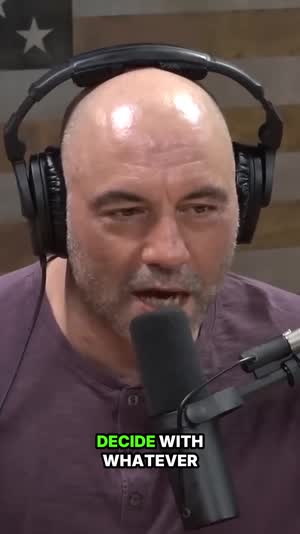
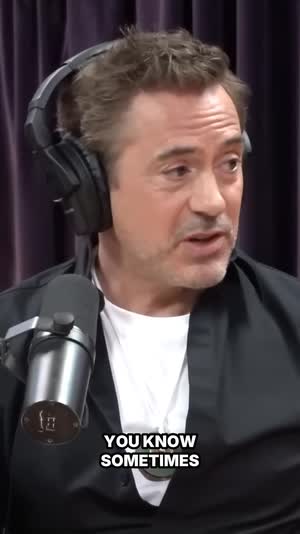
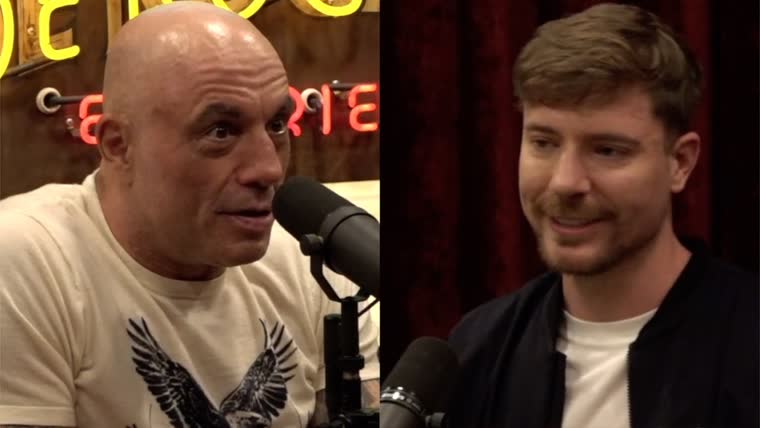
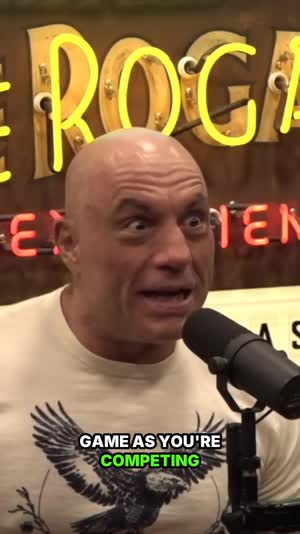
Real ClipSpeedAI output — every clip below was scored, cut, reframed to 9:16 and captioned automatically from the video above it.
Three steps, and the middle one happens without you.
1
Copy the URL of a stream that is live now
Any public YouTube broadcast currently on air works — your own channel or somebody else’s. The address bar link is the right one; you do not need a stream key, an OBS plugin, or access to the broadcaster’s account. Paste it in and the session starts watching from the point you connected, not from the beginning of the stream.
2
Leave it running while the stream does its thing
From there it monitors the broadcast continuously, watching for the signals that reliably sit underneath a good clip: a sudden flood in live chat, a jump in vocal energy, a visible reaction on the camera. Capture runs on a steady rhythm underneath all of that rather than lurching at every burst, and the seconds buffered before each window get stitched back on, so a clip carries enough lead-in for the payoff to make sense to somebody who was not watching.
3
Post the high scorers while the stream is still on
Finished clips appear on the dashboard as the broadcast continues, each one vertical, captioned and graded. Sort by score, publish the top of the list immediately, and keep going — a three-hour stream keeps producing, and by the end of the night you have already posted the best of the first hour instead of starting on it.
What it does to a live broadcast
Everything below happens in the minute or two after a moment airs, without anybody watching a timeline.
💬
Reads the room, not just the audio
Live chat is a crowd of people annotating your stream in real time, and a sudden wall of the same emote is the most honest clip signal that exists. Combining that with audio energy and on-camera reaction catches moments a transcript alone would walk straight past — a save nobody said anything about, a look that landed harder than the sentence did.
⏱
Finished in under two minutes, usually
The gap between a moment airing and a postable file existing is normally thirty to ninety seconds. That number is the whole product. Anything slower than the length of the conversation happening in chat about the thing that just happened is functionally the same as waiting for the recording.
🖼
A 16:9 broadcast becomes a real vertical clip
Streams are wide and Shorts are tall, so most of the frame has to go. Face tracking keeps the person talking in shot as they move, which matters more on a live stream than anywhere else because nobody is sitting still and hitting marks for you.
🎮
Gameplay keeps the reaction on top
When there is a game filling the frame and a webcam in the corner, a naive crop throws away one or the other. The picture-in-picture layout keeps your face over the action, which is the only arrangement where a clutch moment reads on a phone screen.
🔤
Captions rendered into the frame as it airs
Vertical feeds default to muted playback, and a live clip has no second chance to explain itself. Words appear in time with the speech and are rendered into the video, so the file you download is already finished — no subtitle track to attach and nothing to re-sync after a trim.
✂️
Cuts that start on a sentence, not mid-word
The tell of an automated clip is an opening half-syllable, and it costs you the viewer in the first half second. Cuts are placed on sentence boundaries so a clip opens on the start of a thought, which on a live stream also means it usually opens on the setup rather than the punchline.
📊
A score so you know what to post first
A long broadcast produces more clips than you have posting slots. Each one is graded 0-100 on its opening, its pacing and where the peak sits, so the decision at 11pm is which four to publish rather than which forty to watch back.
🎛
Start, extend, and stop on your terms
A live session is something you control while it runs: begin it when the stream starts getting good, extend it if the broadcast goes long, end it when you are done. That is also true from an AI client, since the same controls exist as tools in the MCP connector.
☁️
None of it touches your computer
The capture happens on our servers, not through a plugin on your streaming rig. Your encoder does not lose frames because something else on the machine started transcoding, and your upload bandwidth is unaffected — which is not true of a local replay-buffer workflow.
📅
Straight into a posting queue
Clips can go out to TikTok, Reels and Shorts on a schedule instead of all at once. Posting eight clips in twelve minutes at midnight looks like a dump; spacing them across the next day is how you keep the whole stream working for you.
Who clips YouTube Live
🎮 Gaming streamers
Long sessions, a handful of moments people actually replay. Ending the night with the highlights already posted is a different business from ending it with four hours of footage to review.
🎧 Live podcast and talk shows
A streamed conversation generates quotable segments constantly. The clips that go out during the show pull people into the show, which a next-day upload cannot do.
⛪ Churches and community broadcasts
A streamed service holds several passages that travel on their own. Captions carry them, since almost all of that audience watches without sound.
🏆 Esports and event organisers
Tournaments run for hours and the highlights are the marketing. Real-time clipping means the reel exists while people are still searching the event name.
📈 Clip channels
Being first is the entire model. If a moment goes up while the broadcast is still running, the later posts are competing for what is left.
🚀 Launches, AMAs and webinars
A live product session usually contains the clean two-minute explanation you have been failing to script for weeks. Catch it as it happens rather than hunting for it later.
Why the recording is the wrong place to start on YouTube
YouTube has a quirk that makes live clipping unusually valuable here: the broadcast and the eventual recording occupy the same URL. While you are live, that URL is where YouTube sends people who search your name, and the platform is actively surfacing you because you are on air. That attention spike is happening now, and a clip posted into it lands in front of an audience that is already looking in your direction.
Wait for the recording and two things have gone wrong. The audience wave has moved on, and the recording itself is not instantly available in a workable state after a long broadcast. By the time you have it, scrubbed it, cut a moment and captioned it, you are hours past the thing you are clipping, and on a busy stream somebody else has already posted it.
None of this is an argument against clipping the VOD later — it is worth doing, and the same engine handles a finished upload perfectly well. It is an argument about order. Post the live moments while they are live, then mine the recording for what the real-time pass did not catch.
What a live clipper has to get right that a VOD clipper does not
Working from a finished file is easy in one specific way: the whole thing is available at once, so a model can look at minute ninety before deciding anything about minute three. Live has no such luxury. The decision to cut has to be made from what has already aired, with no knowledge of what happens next, and it has to be made fast enough that the clip is still worth having.
That constraint is why the signals matter so much. Chat velocity is valuable precisely because it is a leading indicator — the audience reacts within a second or two of the moment, so a spike tells you something was good before any transcript could. Audio energy does similar work for solo streams where chat is quiet.
It is also why an honest live clipper produces nothing during dead stretches. Forty minutes of loading screens and small talk contains no clips, and a tool that manufactures some anyway is wasting your review time to look busy. Fewer, better clips from a slow hour is the correct behaviour, not a fault.
A posting cadence for a three-hour broadcast
The temptation once clips start arriving is to publish every one of them the moment it lands. That produces eleven posts in ninety minutes, an audience that mutes you, and a feed algorithm that has no idea which of your posts to test. A cadence is what turns a productive stream into a week of reach.
What works: publish the first genuinely strong clip as soon as it exists, because that one is riding the attention the broadcast itself is generating. Then space the next few across the rest of the stream — roughly one every forty-five minutes to an hour is a rhythm people tolerate. Anything scoring in the middle goes into a queue for the following days, and the tail gets quietly ignored.
Vary the destination as well as the timing. The same clip can go to Shorts during the stream and to TikTok the next morning, and the second posting reaches an almost entirely different set of people. Cross-posting later is free reach; cross-posting simultaneously mostly is not.
The last habit is the one people skip: write the title yourself for the top scorer. Everything else can go out with the suggested title, but the clip you actually believe in deserves ninety seconds of thought about its first four words.
Troubleshooting a YouTube Live session that is not delivering
Most streamers assume a clip should exist the second chat explodes, so when nothing lands during a hot stretch the first suspicion is that detection slept through it. Usually it did not. A fresh window is captured on a fixed rhythm — roughly one every two and a half minutes per stream — and transcription, reframing, captions and the render sit on top of that. Four quiet minutes on the dashboard while the stream is peaking is the system behaving exactly as built.
Nothing at all after ten minutes is a different fault, and it is nearly always the link. A scheduled broadcast that has not gone live, a waiting-room placeholder, a premiere countdown and a members-only stream all look like ordinary YouTube URLs, and none of them hands over a playable live feed. Open the address in a private browser window with no account attached: if you cannot watch it there, neither can the session you just started.
Clips that do arrive but land a beat after the payoff are pointing at the buffer, not at detection. A broadcast running heavy DVR delay pushes everything backwards, and connecting halfway through a moment means there was no buffered lead-in to stitch on in the first place. In that case drag the start handle earlier and re-render, because the export is built from the in and out points you leave behind rather than from the original suggestion.
And when the clips look fine but the ordering feels arbitrary, check whether the broadcaster has chat switched off. Chat is the strongest single signal a YouTube stream emits, and if it is disabled — or YouTube simply declines to serve it — detection degrades quietly to audio and scene-change signals instead of failing loudly. You still get clips. What you lose is confidence in the ranking, which is worth knowing before you trust the top of the list on a silent-chat broadcast.
Real-time detection versus clipping the broadcast by hand
The manual version of this job is well understood: a hotkey wired to a replay buffer, a text file of timestamps, and an editing session the next morning. On the moments you actually catch it beats any automatic pass, because a person knows the running bit, the callback, and the thing that is only funny because of something that happened forty minutes earlier. None of that context is legible to a model reading a rolling transcript.
What the manual route cannot do is stay awake. Say you go live for four hours, three nights a week: catching your own moments means performing and monitoring simultaneously, and the hit rate collapses in the back half of every session — which is precisely where the tired, unguarded, funniest material shows up. Handing the hotkey to a regular in your chat works right up until that person has a Tuesday.
The division that holds up in practice is coverage from the machine and taste from you. Let detection produce the whole candidate list with scores attached, then spend the attention you saved on the three clips you would actually defend: rewriting the title, shaving a second off the front, picking the frame that gets used as the thumbnail. That is a very different hour from scrubbing a four-hour recording to locate those same three clips.
It turns out the two approaches fail in opposite directions, and that is the useful thing to reason from. A human misses most moments and cuts the ones they catch well. Automation catches nearly everything and cuts a fair share of them adequately. A channel built on one flagship upload a week should default to the human; a channel built on volume and on being early to a moment should default to the machine and edit the exceptions.
Clip length, layout and export settings that matter live
Length is decided by where a thought starts and finishes rather than by a slider, with a hard floor of fifteen seconds underneath it — below that a clip reads as a fragment however strong the moment was, because a viewer has not finished orienting before it loops. The practical band on a live capture runs from that floor up to about a minute, and both handles stay draggable afterwards if the moment wants a beat more setup.
Layout is the setting most worth actively choosing rather than accepting. A solo talking-head broadcast is fine on the default tracked crop. Gameplay with a webcam in the corner wants picture-in-picture, so the reaction sits over the play instead of one of them being thrown away. A two-person co-stream wants the split. For example, a 90-minute launch stream with a host and a guest on separate cameras produces unusable clips on a centre crop and perfectly good ones on a split, and that is a two-second decision made once.
Captions are rendered into the frame rather than attached as a separate subtitle file, in your choice of eleven styles. That matters more for live output than for anything else, because a live clip is typically re-uploaded to two or three destinations inside a day, and an attached caption track survives none of those trips — nor does it stay aligned once you trim three seconds off the front.
On export, 9:16 is the default and the format Shorts expects, with 1:1 and 16:9 available when the same moment is aimed somewhere else. Brand Kit settings — logo, colours, fonts — apply to everything a session produces, which is the difference between a night that looks like a channel and a night that looks like a folder of files. Exports carry no mark of ours, on the $1 trial and on every plan above it.
Where a live clipper is not the right tool for a YouTube broadcast
It needs a broadcast it can watch. A public or unlisted-but-reachable stream is fine; anything gated behind a sign-in — members-only, age-restricted, private — is not something the clipper can open, and no amount of retrying changes that.
Live delivery involves latency on YouTube’s side as well as ours, so the clock starts when the moment reaches the stream rather than when it happens in the room. On a high-latency broadcast the total delay is a little longer, which matters if you are racing someone else in the same chat.
And the source quality is the ceiling. A broadcast with clipping audio, a heavy backing track over speech, or a camera pointed at nobody in particular produces clips with those problems intact. Real-time editing does not repair a stream; it packages one.
What watching thousands of live hours taught us
Observations from operating the pipeline in production — not general advice.
Two people typing at once is not a chat spike
Velocity on its own is a trap on a quiet broadcast, because a channel averaging one message a minute triples its rate the instant two viewers type together. So a burst has to clear an absolute floor of 1.5 messages per second before the ratio is consulted at all, and then run at 2.5 times the baseline drawn from the previous ninety seconds, measured across a rolling fifteen-second window. Two routes qualify without the ratio: four reaction-keyword messages inside that window, or three all-caps shouts, where all-caps means at least four characters and no lowercase among them. Once a burst registers, the same stream is locked out for sixty seconds so one long reaction cannot read as six separate events.
A chat burst is no longer allowed to move the capture clock
For a period, a viral burst promoted the next capture to right now. It sounded obviously correct and it made playback feel random: clips arrived in clumps and then not at all, and nobody watching a dashboard could tell whether the session was still alive. Capture now holds a steady 150-second cooldown per stream, which after real slippage from poll alignment, reconnects and write latency lands near twenty clips an hour. The burst data was not discarded — the spike score, the number of bursts falling inside the captured window and a sample of the messages ride along with the clip and feed its rank. Chat still decides what a moment is worth. It stopped deciding when the recorder starts.
The moment is already a minute behind by the time chat reacts
An audience responds after the thing has happened, so a capture that begins at the trigger records the reaction with the cause missing — a clip of everyone losing it at a joke that is not in the file. That is the classic way an automatic live clipper humiliates itself. The last 2 thirty-second segments of every watched broadcast are therefore kept on disk — 60 seconds of rolling pre-context — and stitched onto the forward capture during assembly. Segments older than 90 seconds are dropped, which is exactly why joining a stream mid-moment cannot recover what came before it: nothing was buffered for a broadcast nobody had started watching yet.
Compared with the alternatives
vs. YouTube’s own Clip button
The built-in clip tool makes a short, shareable segment that lives on YouTube, tied to the original video and capped at a minute. It is genuinely useful for pointing a friend at a moment. It is not a file you can post to TikTok, it is not vertical, and it has no captions — so it solves sharing, not publishing.
vs. waiting for the VOD
Same footage, hours later, after the search interest has decayed and the obvious moment has been posted by three other people. The recording is worth mining for the second tier of clips; it is a poor way to compete for the first.
vs. a local replay buffer in OBS
A hotkey saves a raw landscape file to your drive and asks nothing of a service, which is fine if you are already going to edit it. But you have to notice the moment while you are the one performing, and everything after the save — the crop, the captions, the export — is still yours to do.
vs. a human clipper watching the stream
A good clipper has taste an algorithm does not, and for a flagship channel that is worth paying for. What they cannot do is watch five hours without a break, or turn around a captioned vertical in ninety seconds while continuing to watch. The realistic setup is automation for coverage and a person for the ones that matter.
vs. VOD-only AI clipping tools
Almost all of them require a completed file — you upload or paste, and the video has to exist first. That is a structural limit rather than a missing feature, and it is why real-time is the part of this worth testing before you compare anything else. See the live and VOD workflow together.
Frequently asked questions
Does it really clip while the stream is still going?
Yes — that is the entire point of live mode. The session attaches to the broadcast as it airs and produces finished clips continuously, so you are publishing during the stream rather than reviewing footage after it. Most tools in this category cannot do this because they need a completed file first.
How fast does a clip appear?
Typically thirty to ninety seconds after the moment airs, including transcription, the vertical reframe, the captions and the render. Longer clips and a busy queue push that number up somewhat. It is fast enough to post while chat is still reacting, which is the threshold that matters.
Do I need to connect my YouTube account?
Not to clip. Watching a public broadcast only needs its URL. You would connect an account if you want to publish clips straight back to YouTube afterwards, and that connection is separate from the clipping itself.
Can I clip a stream I am not the broadcaster of?
The tool accepts any public live URL, so technically yes. What you may publish afterwards is a rights question governed by the platform you post to and the broadcaster’s terms, and that judgement sits with you rather than with us.
Can I clip my own stream while I am the one streaming?
Yes, and it is the easiest setup of all. Start the session before you go live, stream normally, and collect finished clips at the end without ever having watched your own broadcast back. Nothing runs on your streaming machine, so your encoder is unaffected.
What happens on a very long broadcast?
The session keeps producing as the stream continues and can be extended if the broadcast runs longer than you planned. A marathon stream generates a lot of clips, which is exactly when the score earns its place — you post the top of the list and ignore the tail.
What if the stream is quiet for an hour?
You get few clips or none from that stretch, which is correct. Producing filler from dead air would only cost you review time. Detection is looking for actual signal — chat spikes, energy jumps, visible reactions — and a slow hour genuinely does not have any.
Does it work on a YouTube premiere?
A premiere is a pre-recorded upload playing on a schedule with live chat attached. Since the finished file exists, the better path is to clip the video itself rather than watch the premiere in real time — you get the same clips without the wait.
Will it clip the VOD after the stream ends?
Live sessions and finished uploads are handled separately. Once the recording is available you can submit that URL as a normal clipping job, which is a good way to catch the quieter moments the real-time pass did not flag.
Does it capture the live chat on screen?
No — chat is used as a detection signal rather than composited into the clip. The output is the broadcast reframed vertically with captions, which is what performs on a short-form feed. Chat overlays tend to read as clutter at phone size.
Can I stop a session early?
Yes. Sessions are things you start, extend and stop, so you can end one the moment the interesting part of the broadcast is over. The clips already produced stay in your account.
Does clipping affect my stream quality?
No. Capture happens on our infrastructure rather than through software on your PC, so there is no additional encoding load, no dropped frames, and no upload bandwidth competing with your broadcast.
Can I run more than one stream at a time?
Each broadcast is its own session. How many you can run concurrently depends on the plan you are on, so if you are covering several channels at once it is worth checking that in your account before an event rather than during one.
Does it work on Twitch and Kick as well?
Yes — the same real-time pipeline handles all three. Kick in particular tends to be under-clipped relative to how much clippable material it produces, which makes being early there easier than on the more crowded platforms.
Are the clips vertical?
By default, 9:16 with the speaker tracked through the crop. Square and landscape versions are available too if you want the same moment for a different destination, though vertical is what Shorts, TikTok and Reels expect.
Do the clips have captions?
Yes, word by word and burned into the video itself, in your choice of eleven styles. Burned-in matters here because a live clip usually gets re-uploaded across several platforms, and a separate subtitle file would not survive the trip.
How long is each clip?
Long enough to contain the moment and short enough to hold a feed viewer — usually somewhere between fifteen seconds and a minute, decided by where the thought starts and ends rather than by a fixed timer. You can adjust the in and out points afterwards.
Can I post directly to Shorts from here?
Yes. Connect the accounts you want and publish immediately or schedule ahead. During a live stream the usual play is to post the top scorer right away and queue the rest across the following day.
Can I edit a live clip before posting?
Yes. Trim the ends, change the caption style, rewrite the title, switch layout and re-render. Most live clips go out untouched, but the option matters for the one that needs three seconds shaved off the front.
What about a members-only or age-restricted stream?
Those require a signed-in viewer, so the clipper cannot watch them. The same applies to private broadcasts. If a stream is not reachable from a plain public URL, real-time clipping is not available for it.
Do live clips carry a watermark?
No. Every export comes out clean, from the first clip you cut on the $1 trial through to everything you render on a plan. If you want your own channel branding instead, the Brand Kit applies your logo, colours and fonts consistently across everything you produce.
Can I try live clipping cheaply before committing?
The $1 three-day trial is the way in, and a real broadcast is the right way to judge cut quality and caption timing. It takes a card before anything runs, and it covers uploaded and pasted videos of up to two hours a file. Which tiers include live sessions is set out on the pricing page.
What does live clipping cost once the trial ends?
Pro is $39 a month. You can cancel in one click, and we email you before the trial converts so the charge is never a surprise. If you clip streams regularly the trial will tell you within one broadcast whether it pays for itself.
Can I trigger a live session from code or from an AI client?
From an AI client, yes — start, check, extend and stop are all tools in the connector. For code, the current REST endpoints are built around finished videos, so live is best driven from the app or the connector today. See the API docs for what is covered.
Does the score work the same way on live clips?
It is the same 0-100 grade, judging how the clip opens, how it paces and where the peak lands. Use it as a ranking of the clips in front of you rather than a prediction of views — deciding a posting order is the job it is good at.
What if I connect halfway through a stream?
The session starts watching from the point you connect, so anything before that is only recoverable from the recording later. If you know a stream is worth covering, start the session early — an idle session costs you nothing but a missed hour is gone.
What other tools could I use to clip a YouTube Live broadcast?
Four realistic options besides this one. YouTube’s built-in Clip button, which shares a moment on YouTube but produces no file. A local replay buffer in OBS, which gives you raw landscape footage and leaves the crop, captions and export to you. A person in your chat with a hotkey, which is the highest-quality option per clip and the least scalable. Or recording the stream and running the finished file through any VOD-based clipper the next day, which works fine as long as being hours late is acceptable for your channel.
Where can I read more about the live workflow?
The strategy side — picking streamers, posting cadence, and how live clipping compares with the VOD-first approach — is covered in more depth in our livestream clipping guide, and you can start a session any time from the app.
Point it at a stream that is live right now
Find a broadcast on air, paste the link, and watch the first clip land before the stream has moved on.