









No letterbox bars
The output is a real vertical frame, not a shrunken landscape video parked in the middle of a black rectangle. Bars waste more than half the screen on a phone, and they signal instantly that the video was made for somewhere else.
Going from a wide frame to a tall one means deleting most of the width. The question is which part survives. This converter answers it from the footage — tracking whoever is speaking, switching to a split or a fit when a crop would destroy the shot, and burning in captions on the way out.
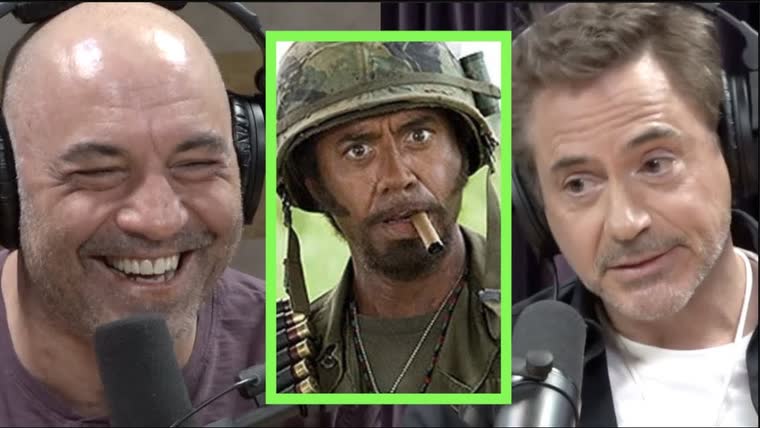
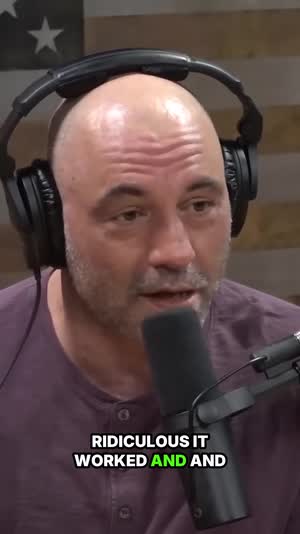
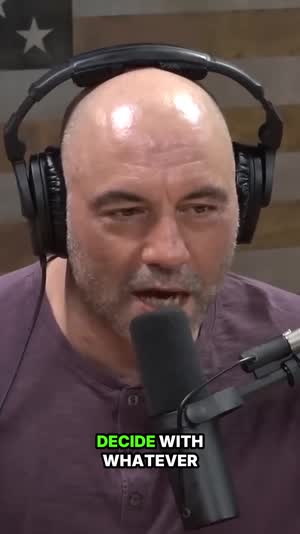
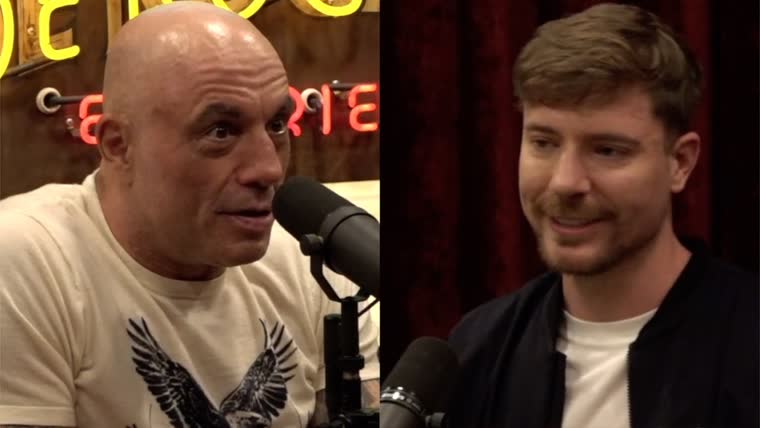
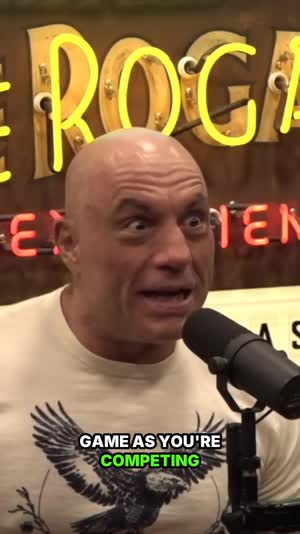
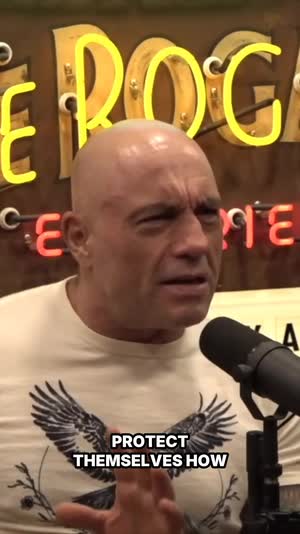
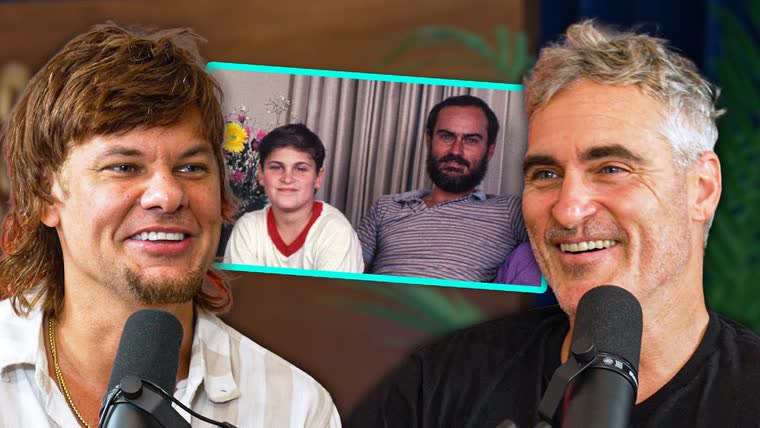
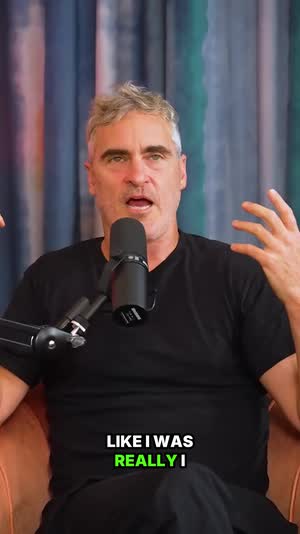
Real ClipSpeedAI output — every clip below was scored, cut, reframed to 9:16 and captioned automatically from the video above it.
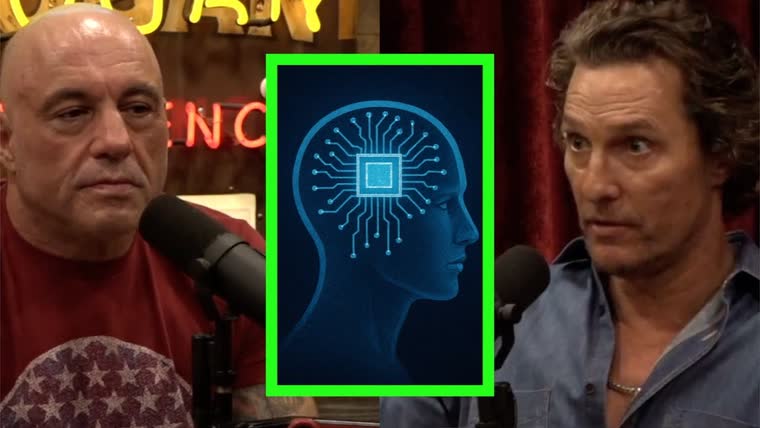 Source video
15:27
Source video
15:27



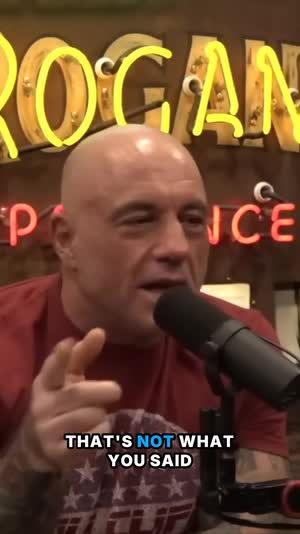

Nothing to install, no crop box to drag across a timeline.
Paste a YouTube URL or upload the file. Ordinary 16:9 recordings are the common case, but ultrawide camera footage, 4:3 archive material and square exports all go through. Uploads can run up to two hours on any plan, the $1 trial included, and the source needs to be at least two minutes long.
Faces are located, the active speaker is identified, and the type of shot is classified — one person, a conversation, a shared screen, gameplay. That determines whether the frame is cropped in tight, split between two speakers, or kept whole at reduced size because the edges of the picture matter.
You get MP4s at 1080 × 1920 with captions already burned in, ready to upload anywhere that expects vertical. If you would rather not touch the files at all, connect TikTok, Instagram and YouTube and let the scheduler publish them on a calendar.
Changing the dimensions is the easy half. Deciding what to keep is the half that determines whether anyone watches.
The output is a real vertical frame, not a shrunken landscape video parked in the middle of a black rectangle. Bars waste more than half the screen on a phone, and they signal instantly that the video was made for somewhere else.
A fixed centre crop keeps whatever happened to be in the middle, which in a two-person recording is the wall behind them. Speaker tracking moves the crop window to whoever is talking, which is the single largest quality difference between a converted clip and a wasted one.
Sometimes the edges are the content — a chart, a whiteboard, a wide composition. Fit keeps the entire original frame, scaled down, with the remaining space handled rather than left empty. You trade subject size for losing nothing, which is occasionally the correct trade.
When two people are talking across a wide frame, the vertical version stacks them, each panel framed on its own face. Both stay on screen through the exchange rather than one of them existing only as a voice.
Vertical video is watched on mute far more often than horizontal video is, so subtitles are not optional at this aspect ratio. Words highlight in time with the speech and are burned into the picture, which means they cannot be stripped by a re-upload.
Most people converting a long recording do not want one long vertical file — they want the postable pieces of it. The tool cuts on sentence boundaries and converts each piece, so what comes back is a batch of finished clips rather than a single unwieldy export.
Alongside 9:16 you can export 1:1 for square placements and 16:9 if you also need the original shape. Each ratio is framed on its own terms instead of one master crop being reused for all three.
The Brand Kit puts your logo, typeface and colours on every converted file, which matters when a viewer is seeing twenty of your clips in a feed rather than one on your website.
Connect a YouTube, Twitch or Kick channel and vertical clips are produced during the stream. The conversion happens live rather than after you have downloaded a several-hour VOD and gone looking for the good part.
Talks are filmed wide because that is how a room gets covered. Every one of those recordings has to become vertical before it works as social promotion for next year's event.
Your back catalogue is already 16:9 and it is the cheapest content you will ever have. See the YouTube Shorts maker for the version of this aimed specifically at the Shorts feed.
Recorded demos and customer calls run landscape from a meeting tool. Converting the strongest ninety seconds gives the team something to send that a prospect will actually finish.
The brief is usually "get more out of what we already filmed", and the blocker is that everything in the drive is horizontal. Conversion at volume is the whole job. Instagram Reels is where most of it lands.
A service or a talk is captured on a fixed wide camera. Vertical excerpts reach people on a phone who were never going to open an hour-long video.
A 16:9 capture with a webcam corner is a specific conversion problem, and picture-in-picture is the layout that solves it without shrinking the game to nothing.
Take a standard 1920 × 1080 frame. To fill a 9:16 output using the full height of that frame, you can keep a column roughly 608 pixels wide. That is a little under a third of the original width, and the other two thirds are discarded outright. Whatever was in them is not recoverable, compressed, or shrunk — it is gone.
There is a second consequence people notice later. That 608-pixel-wide column then has to be scaled up to 1080 pixels wide to hit a standard vertical output, so you are enlarging what remains by roughly 1.8 times. On a 1080p source that is a genuine upscale and it is visible on close-ups. If you have a 4K master of the same footage, use it — the same crop takes about 1216 pixels of real width out of a 3840-wide frame, which is more than enough to fill 1080 without stretching anything.
None of that is a criticism of vertical video, it is just the physics of the format. It does explain two practical rules. Convert from the highest-resolution source you have rather than from a compressed re-upload, and expect that a conversion decision is really a decision about which third of your picture is worth keeping.
The obvious loss is people. A guest sitting at the right of a two-shot is entirely outside a centred vertical crop, and unless the crop moves, the clip becomes a video of the host reacting to an unseen voice. Tracking exists for this and it is the reason the same footage can produce a usable vertical clip at all.
The less obvious loss is graphics. Lower thirds, name captions, logos, chart annotations and slide edges tend to live near the borders of a landscape frame, precisely because that is where they stay out of the way. Crop to vertical and they are the first casualties. If your footage depends on on-screen text, either use fit so the whole frame survives, or accept that the text needs recreating at vertical dimensions.
Then there is composition. A wide shot that was framed to show a room, a stage, a landscape or a group is not the same shot once two thirds of it is removed — it is a detail from that shot. Sometimes the detail is better for social. Often it is not, and the honest move is to recognise that a particular piece of footage was made for a horizontal frame and leave it there.
The first is scale-to-fit with padding: shrink the whole landscape frame, keep it intact, and fill the space above and below with black or a blurred duplicate. It loses no information and it is the least effort. Its cost is that your subject ends up small in a format viewed on a phone at arm's length, and the blurred-bar look reads as a re-upload rather than something made for the feed. Use it when the frame genuinely cannot be cut.
The second is a fixed crop, usually centred. It fills the screen properly and requires no analysis, so almost every free converter offers exactly this and nothing else. It works on a single, centred, stationary subject and fails on essentially everything else, quietly, in a way you only notice after uploading.
The third is a tracked crop, which is what this tool does by default. The crop window is placed where the subject is and moves as the subject and the shot change, with a switch to split or grid layouts when there is more than one person worth showing. It fills the frame like a fixed crop and keeps the subject like fit does. It costs analysis time, which is why it belongs in an automated pipeline rather than in a manual export dialog.
Choosing between them takes about ten seconds if you ask the questions in the right order. Is there text or a graphic near the edge of the frame that a viewer needs to read? If yes, fit. Is there more than one person who speaks during the section? If yes, split or a grid. Is there a single subject who moves, or a camera that reframes them? If yes, a tracked crop. Only if the answer to all three is no does a plain centred crop become the right and cheapest choice.
Most people read a bad vertical export as a failure of the analysis. Far more often the analysis was right about the footage and wrong about your intent, and the correction is one setting rather than a re-shoot. Four symptoms cover nearly all of it, and each has a different cause.
The subject pinned to one edge of the tall frame for a long stretch means the crop locked onto a face that is not the one you care about — a listener nodding, a person in the background, a poster with a face on it. Switching that clip to the split layout resolves it when there really are two people, and forcing a wider static layout resolves it when there are not.
A missing lower third, a vanished logo or a chart with its axis labels sliced off is not a bug at all. That is a crop doing the only thing a crop can do, and the graphic was living near the border of the wide frame precisely because that is where it stayed out of the way. Re-render that clip as fit and the whole original picture survives at a smaller size.
Soft, mushy close-ups are almost always an input problem rather than an output one. A 1080p file downloaded back off a platform has already been through one round of compression, and the vertical crop then enlarges those compressed pixels by roughly 1.8 times. In practice the fix lives upstream: convert from the master file on your drive, not from the published copy.
And a clip whose framing simply looks restless — never wrong, never still — usually contains a speaker who rocks in and out of shot. Tracking is doing its job; the job is the wrong one for that footage. A fixed wider composition looks calmer even though it makes the person smaller, and calm beats large at this size more often than people expect.
The clearest case is a shot whose subject is the width itself. A landscape, a stage with a band spread across it, a football pitch, a two-page diagram — remove two thirds of the frame and what is left is not a tighter version of that shot, it is a different and worse shot. Fit will preserve it, but preserving a wide composition inside a tall frame at one third the size is rarely worth posting either.
Worth knowing before you batch a whole archive: footage that carries its meaning in on-screen text almost never converts well. Slide decks captured at desktop scale, spreadsheets, code editors and dashboards are legible on a laptop and illegible on a phone at any aspect ratio. The honest answer there is to rebuild the visual for vertical rather than to convert the recording of it.
The other mismatch is scope. This produces clip-length verticals from the parts of a recording that stand alone; it does not re-render an entire session end to end in a tall frame. Say you need all ninety minutes of a conference talk available vertically for an in-app player — that is a straight transcode with a fixed crop, and an editor or a single ffmpeg command does it faster and cheaper than any analysis pipeline will.
Finally, if the source was already shot vertically, the conversion half of this does nothing for you. The moment selection, the sentence-boundary cutting, the filler removal and the captions still apply, but you should judge the tool on those rather than on framing you never needed.
Manual reframing in an editor is not hard, it is just repetitive. You drop the landscape clip into a vertical sequence, scale it up, and keyframe its horizontal position so the crop sits on whoever is speaking. On a single clip with two or three speaker changes that is a few minutes of work and the result is exactly what you intended, frame for frame, which no automatic pass can promise.
The arithmetic changes with volume, and the biggest mistake people make is pricing the first clip instead of the twelfth. A one-hour recording that yields twelve postable moments carries perhaps thirty speaker changes across those twelve clips, and each one is a keyframe pair you set, watch back, and nudge. That is the afternoon, and it is why hand reframing quietly stops happening about three weeks into anyone's clipping habit.
The split is therefore not automation versus craft, it is where you spend the craft. Let the analysis take the routine batch, then open the two or three clips that carry real weight — the ad, the launch video, the one going on the homepage — and reframe those yourself with the crop exactly where you want it. Both paths export the same 1080 × 1920 file, so nothing downstream cares which route a clip took.
One genuine advantage of the manual route is that a human knows what the shot is about. An automatic pass follows faces and shot type; it does not know that the product on the table matters more than the presenter this time. When the meaning of a shot sits somewhere other than on a face, hand framing wins and it is not close.
The alternative nobody counts as one is filming for the frame you will publish in. A phone on a second tripod, shooting vertical alongside the main camera, produces material that needs no conversion at all and no upscale. It costs a device and a bit of setup discipline, and for anything you record regularly it is the highest-quality option available. Conversion exists for the footage that already happened.
Deliberate letterboxing is a real alternative and gets dismissed too quickly. Some formats — a chart walkthrough, a wide product shot, an archive clip — are more honest presented whole with framing above and below than cropped into a detail. It reads as a repost when it is lazy and reads as a choice when the content plainly needs the width, and viewers can tell the difference.
The in-app editors on TikTok, Reels and Shorts will all trim and reposition a landscape file for free, on the phone, in the time it takes to upload. For one clip whose good part you already know, that is the correct tool and any other answer is overengineering. It falls apart at the point where you have to find the good parts of an hour of footage before you can trim anything.
Command-line and editor routes are covered in the comparison below, and both remain the right call when you already know the exact crop you want. The last option is other clipping services, most of which now do face-aware conversion of uploaded files. If you also work from live broadcasts, that is the axis worth testing them on — clipping during a stream is a different engineering problem, and the livestream clip generator explains why the two behave differently.
Observations from operating the pipeline in production — not general advice.
The failure mode we did not design for was the quiet one. A self-test guarding the face-detection stage returned a false negative for months, so the pipeline concluded there was nothing to track and every clip fell back to a fixed centre crop. Nothing errored, no job failed, and every dashboard stayed green while output quality dropped, because a centre crop is a completely valid vertical frame — it is just the wrong one. The lesson we took is that a reframing system needs a check on whether tracking actually engaged, not merely on whether a render finished.
Layout selection works from faces, active speaker and shot type. What it has no way to read is importance: a chart in the corner, a product on the table, a name card at the bottom of the frame all look like background to a system that scores composition rather than meaning. That is the reason switching a clip to fit is the single most common manual override on this tool, and why we surface the layout control on every clip instead of hiding the decision. When the point of a shot lives outside the faces in it, you have to say so.
With a VOD the whole runtime exists before a single decision is made, so the analysis can look forward, compare candidates and pick the strongest thirty seconds in an hour. Live has none of that. Each framing and cut decision is made from what has already been broadcast, with no knowledge of whether something better arrives ninety seconds later, which is why live output skews toward moments that resolve quickly and self-contained exchanges rather than long arcs. Same engine, genuinely different problem.
Those tools resize and pad, or crop the middle, and neither decision looks at your footage. They also tend to cap file size and duration, which rules out the long recordings that most need converting. For a short clip with a centred subject they are perfectly adequate and free, and that is a fair use of them.
A crop filter and a scale filter will produce a technically flawless vertical file in one command, and if you already know the exact crop offsets you want, that is the fastest route in existence. What the command line cannot do is watch the footage and decide where the offsets should be, or change them when the speaker changes.
Any editor can output a vertical sequence, and you can keyframe the position of a landscape clip inside it to track a subject by hand. That is real work per clip. For one hero video it is time well spent; for the twelve clips inside an hour-long recording it is an afternoon.
Face-aware conversion is common now, so look at the specifics: how many layout strategies are offered, whether the tool will refuse to crop content that should not be cropped, and whether you can override the decision. Testing beats reading — convert one of your own files and judge the framing.
Pick a file with two people in it, or a presenter who moves. That is the footage where the difference between a tracked crop and a centred one is impossible to miss.
⚡ Convert To Vertical — $1 trial